Overview
Keeping network devices on current firmware is a core responsibility of any network engineer. Outdated software exposes devices to security vulnerabilities, missing features, and known bugs that vendors have since resolved.
In this lab I upgraded a Cisco Catalyst WS-C3560G from IOS 12.2(25)SEB4 to 12.2(55)SE12 using a TFTP server hosted on a Windows 11 laptop.This was greatly influebced by my inability to set up ssh and using cryptographic security with the previous firmware The process covered verifying the existing image integrity using an MD5 checksum, transferring the new image over TFTP, updating the boot variable, and validating the upgrade after reload.
Objectives
By completing this lab I was able to:
- Verify the integrity of the existing IOS image using MD5
- Configure IP connectivity between the switch and TFTP server
- Transfer a new Cisco IOS image using TFTP
- Configure the boot variable to point to the new image
- Save the running configuration
- Reload the switch and validate the upgrade
- Troubleshoot common firmware upgrade issues
Lab Environment
Hardware
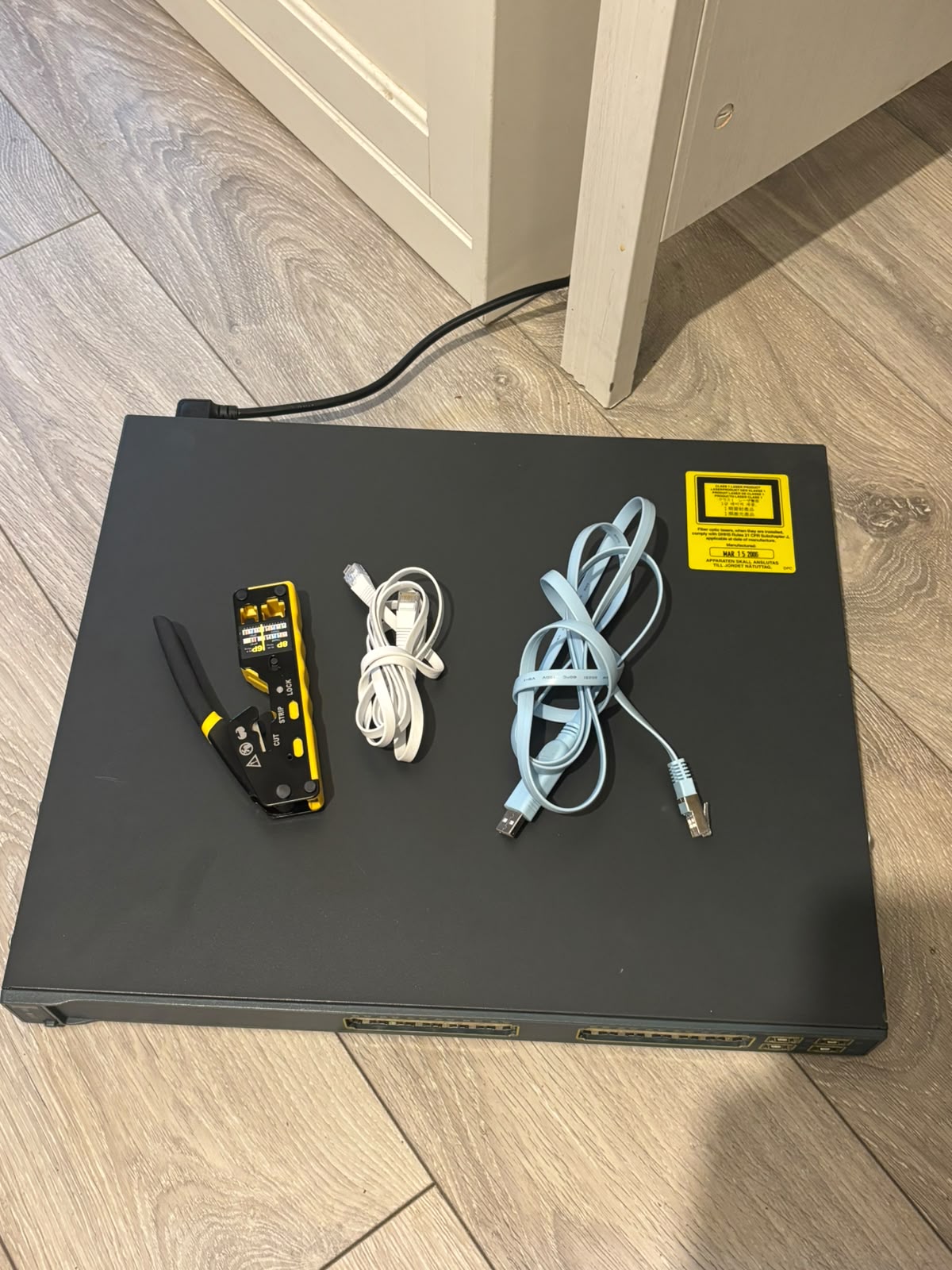
- Cisco Catalyst WS-C3560G-24PS-E
- Windows 11 Laptop
- Console Cable
- Ethernet Cable
Software
- Cisco IOS 12.2(25)SEB4 — original image
- Cisco IOS 12.2(55)SE12 — target image
- Tftpd64 — TFTP server
- PuTTY — console access
Network Topology
The switch was connected directly to the Windows 11 laptop via Ethernet. The laptop acted as the TFTP server and console access was used to configure the switch throughout.
Windows 11 Laptop
192.168.1.100
      │
      │ Ethernet
      │
Cisco Catalyst 3560G
VLAN 1: 192.168.1.10
Initial State
Before starting the upgrade:
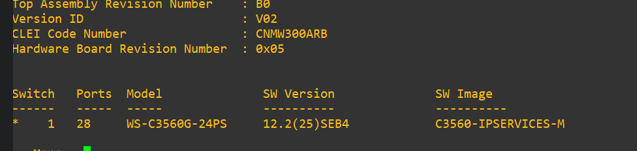
- Running IOS version: 12.2(25)SEB4
- Switch accessible via console
- New IOS image not yet present in flash
- TFTP connectivity not yet configured
Verify Existing IOS Version
The current IOS version was confirmed before beginning the upgrade.
show version
Step 1 — Configure Management Connectivity
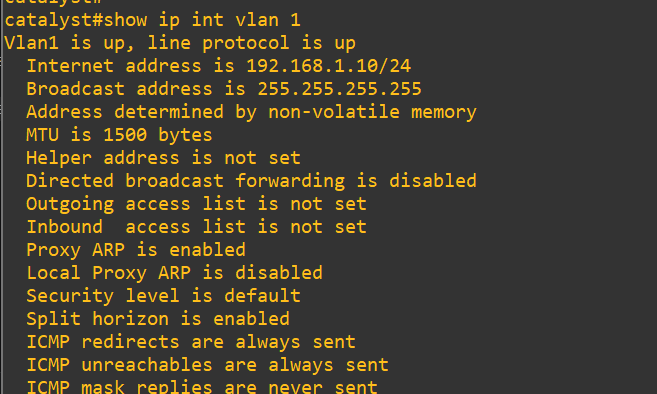
The VLAN 1 interface was configured to allow IP communication between the switch and the TFTP server.
interface vlan 1
 ip address 192.168.1.10 255.255.255.0
 no shutdown
Verification
show ip interface brief
Step 2 — Test Network Connectivity
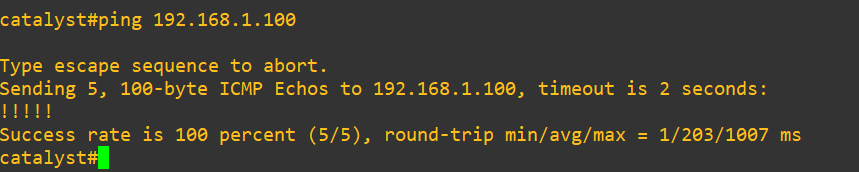
Connectivity to the TFTP server was confirmed before attempting the transfer.
ping 192.168.1.100
Five successful replies confirmed the switch could reach the TFTP server.
Step 3 — Configure TFTP Server
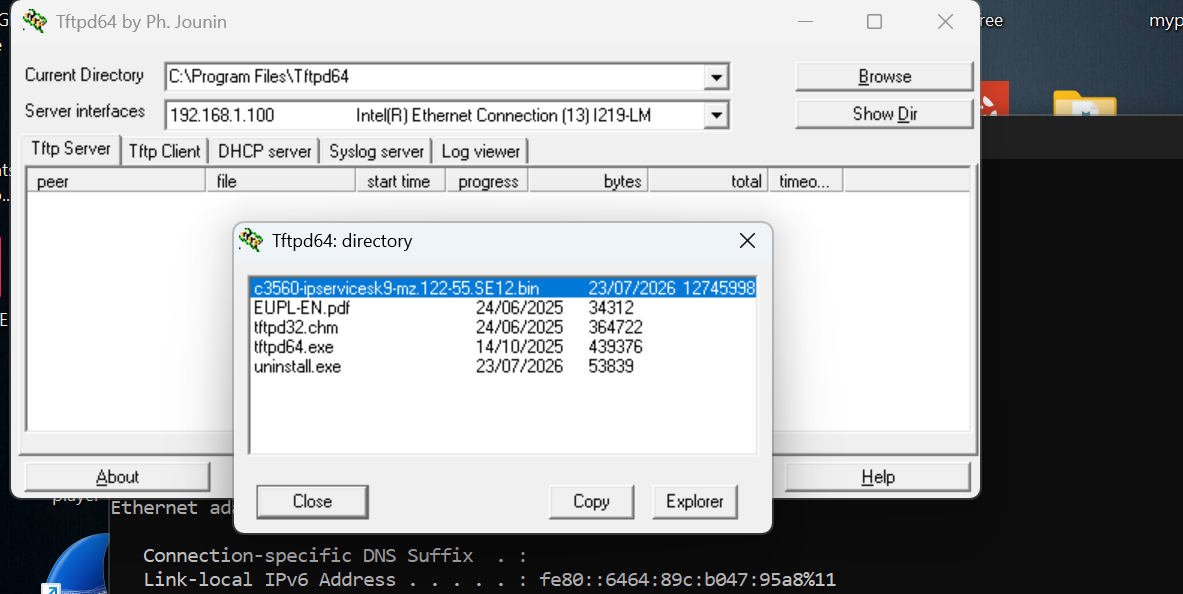
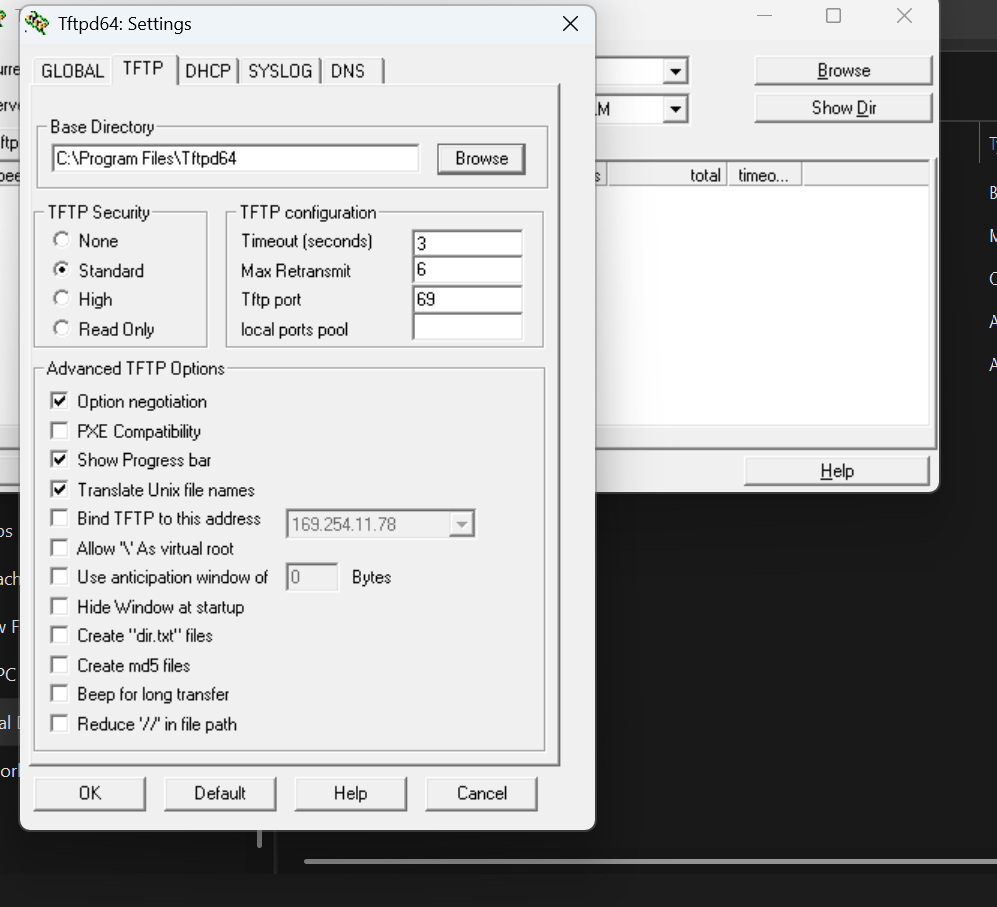
Tftpd64 was configured on the Windows 11 laptop with the correct network adapter and base directory. The IOS image was confirmed present in the TFTP directory before beginning the transfer.
- Server interface: 192.168.1.100
- IOS image: c3560-ipservicesk9-mz.122-55.SE12.bin
Step 4 — Transfer IOS Image
The new IOS image was copied from the TFTP server to flash memory.
copy tftp: flash:
When prompted:
Address or name of remote host? 192.168.1.100
Source filename? c3560-ipservicesk9-mz.122-55.SE12.bin
Destination filename? c3560-ipservicesk9-mz.122-55.SE12.bin
The transfer completed successfully.
Step 5 — Verify Flash Contents
Flash memory was checked to confirm the new image was present alongside the original.
dir flash:
Step 6 — Configure Boot Variable
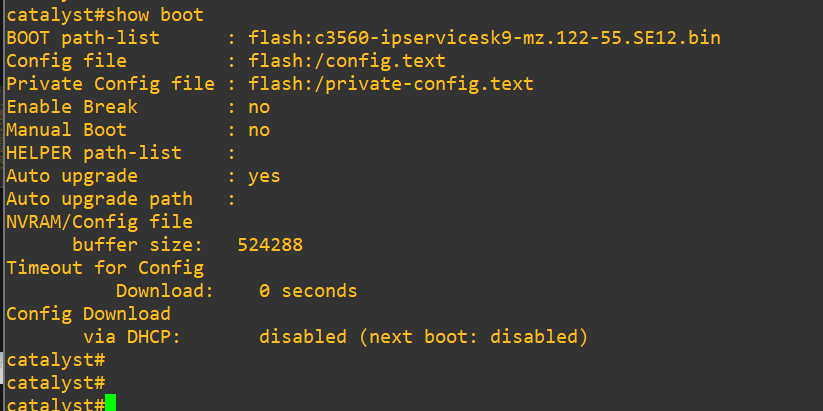
The switch was instructed to boot from the new IOS image on next reload.
configure terminal
 boot system flash:c3560-ipservicesk9-mz.122-55.SE12.bin
end
Verification
show boot
Step 7 — Save Configuration
The running configuration was saved to ensure the boot variable persisted after reload.
copy running-config startup-config
Step 8 — Reload the Switch
The switch was reloaded to boot into the new IOS version.
reload
During the first boot the switch automatically performed a bootloader upgrade before loading the new operating system. This is expected behaviour following a major IOS upgrade.
Verification
After rebooting, the following commands confirmed a successful upgrade.
show version
show boot
dir flash:
Results confirmed:
- Cisco IOS Version 12.2(55)SE12 running
- Boot variable pointing to correct image
- New IOS image stored in flash

Troubleshooting
| Problem | Cause | Resolution | |---|---|---| | TFTP transfer failed | Incorrect Tftpd64 Base Directory | Corrected the Base Directory to match the folder containing the IOS image | | TFTP server unreachable | VLAN 1 not configured | Configured management IP on VLAN 1 and verified with ping | | Bootloader upgrade on reload | Expected after major IOS version jump | Allowed the switch to complete the automatic bootloader upgrade | | Wrong image loaded | Boot variable not set | Configured boot system statement and verified with show boot |
Verification Checklist
- ✅ Existing IOS version confirmed — 12.2(25)SEB4
- ✅ Management IP configured and connectivity tested
- ✅ TFTP server configured correctly on Windows 11
- ✅ New IOS image transferred successfully to flash
- ✅ Flash contents verified — both images present
- ✅ Boot variable configured to new image
- ✅ Configuration saved to NVRAM
- ✅ Switch reloaded successfully
- ✅ Cisco IOS 12.2(55)SE12 confirmed running
Key Takeaways
This lab covered the complete end-to-end IOS upgrade process on real Cisco hardware — a routine but critical task in any enterprise network environment.
Key concepts demonstrated:
- Image integrity verification using MD5 checksums before transfer
- TFTP as a lightweight protocol for transferring IOS images to network devices
- Boot variable management to control which image loads on startup
- Flash memory management — both old and new images coexist in flash until manually removed
- Bootloader upgrades — major IOS version jumps may trigger automatic bootloader updates
In production environments this process would typically also include scheduling a maintenance window, notifying stakeholders, and having a rollback plan in place should the upgrade fail.
Commands Reference
show version
interface vlan 1
 ip address <ip> <mask>
 no shutdown
show ip interface brief
ping <tftp-server-ip>
copy tftp: flash:
dir flash:
configure terminal
 boot system flash:<image-name>
end
show boot
copy running-config startup-config
reload
References
- Cisco Catalyst 3560 Software Configuration Guide
- Cisco IOS Release Notes — 12.2(55)SE
- Cisco CCNA 200-301 Official Cert Guide — Volume 1